

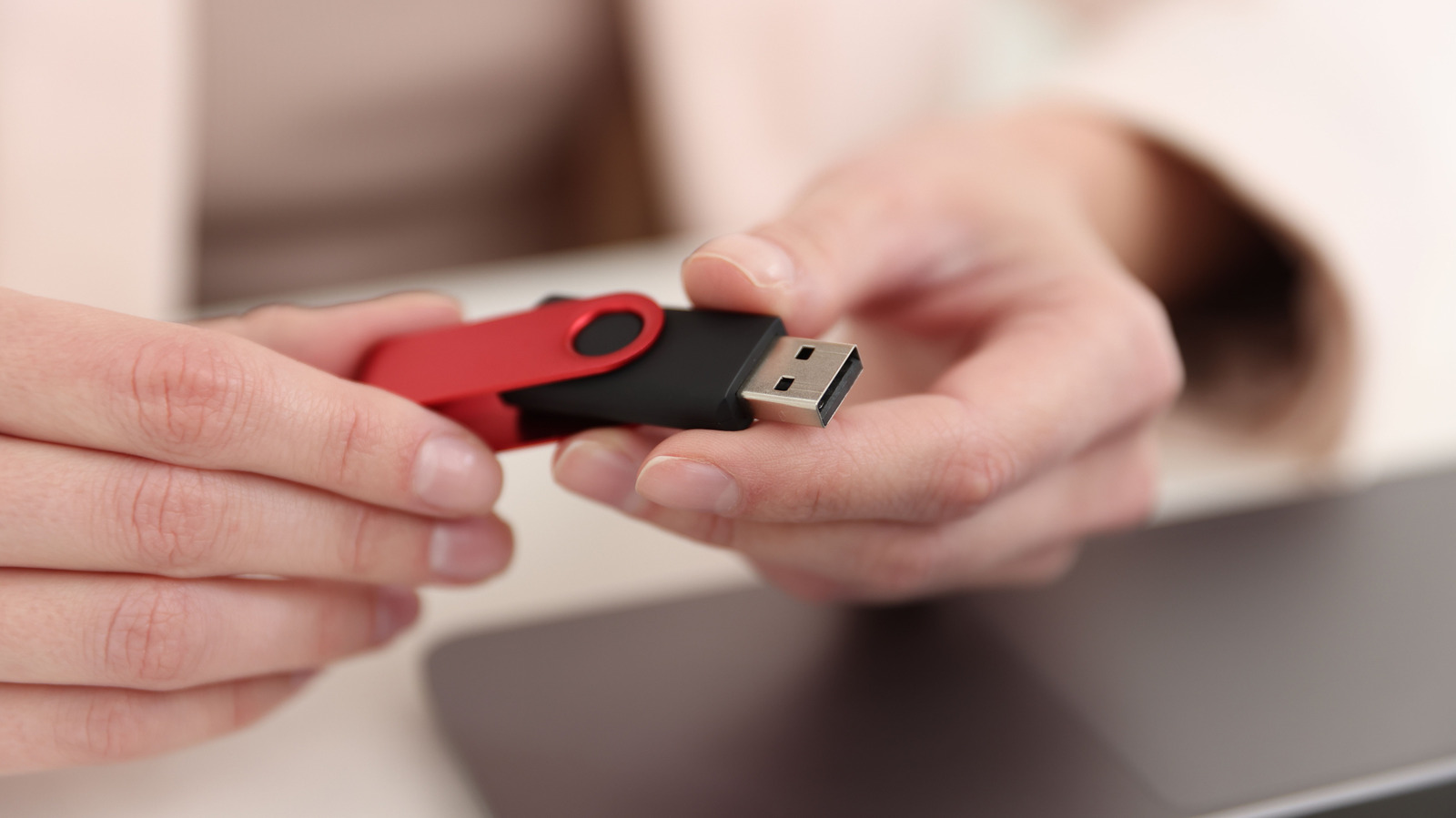
The rectangular plug on the end of your flash drive carries a letter with no hidden meaning. In USB-A, the “A” just identifies the connector type. It says nothing about how quickly the port transfers data or how much power it supplies.
This matters more than you might think. Two ports with an identical rectangular opening can do very different things, and the shape gives you no clue which kind you have in front of you.
The letter describes the plug and that’s all
USB is short for Universal Serial Bus. The “A” refers to a Type-A connector: the wide, rectangular plug found on flash drives and on huge numbers of charging cables. The “B” in USB-B and the “C” in USB-C follow the same logic.
The USB Implementers Forum (USB-IF) created these letters because it needed names for the physical connections and for delivering power and data. An old-style printer cable is a good example. Its square B end fits the printer, and its rectangular A end goes into your PC. Early on, this gave people an easy way to know which end went where, and why.
Put simply, Type-A is the label for a connector on a port that either charges or charges and moves data. It’s a boring answer, but there’s nothing more to it.
Identical shape, very different speeds
Nearly everyone can picture a USB-A port. Knowing what a given one can do is harder. USB 2.0 maxes out at 480 Mbps, and quicker USB-A versions handle 5 Gbps or 10 Gbps.
Those ceilings are why a device might not behave as you’d expect after you plug it in. Cables share the same issue. An old USB-A cable pulled from a drawer could be charge-only, or it could handle charging and data. Without labels or a spec sheet, there’s no way to know.
Version numbers aren’t tied to a single plug shape either. USB 2.0 shows up outside USB-A, and a USB-C port can also be capped at USB 2.0. Think of the connector letter and the port’s capability as separate pieces of information, and check that they match before you rely on a port.
Reading a port before you plug something in
Look at both the cable and the port on your PC before connecting anything. Most computers have markings printed beside each port, including the trident symbol, and the manual for your PC should say what each port supports.
Colors can give you a hint, but most aren’t standardized, and manufacturers largely choose them themselves. A teal port often signals a faster USB connection, though you can’t count on it.
Match the port to the task. A keyboard or mouse generally doesn’t need the bandwidth an external SSD does, so keep the faster ports free for drives.
USB-C is gradually replacing it
USB-C is winning ground from USB-A. Most PCs now put more weight on USB-C ports, particularly in mid-range and high-end models, and most mobile phones use only USB-C, adapters aside.
USB-C brings real practical benefits. Most USB-C connectors can go in either way up. The smaller plug frees up space on laptops, and USB-C is the connector platform for USB4 capabilities. It also adapts more easily in size and use. Even so, it can be as confusing as the colors on USB-A ports.
USB-A isn’t going the way of the rotary phone just yet. PCs and Macs usually still include USB-A ports, even though they’re now secondary to USB-C.
Hold on to cables that still work
For most people, there’s no need to replace a USB-A keyboard and mouse. A USB-A flash drive is still perfectly usable, and USB-C to USB-A adapters are fine too.
Pick the version that suits how you work. When buying new gear, match it to the ports you already have and rely on most. With USB-A ports becoming less common, planning for both connector types is sensible, but it isn’t a reason to throw away devices and cables that still do their job.