
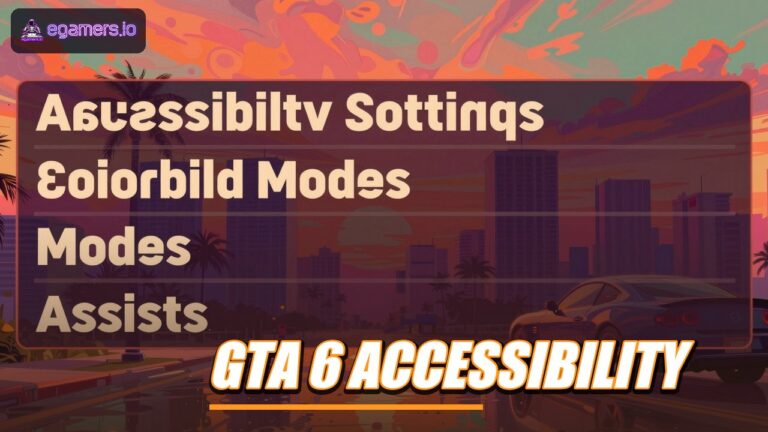
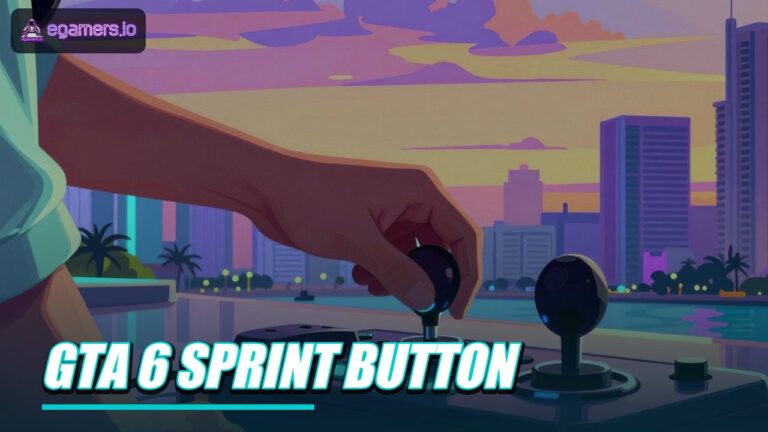

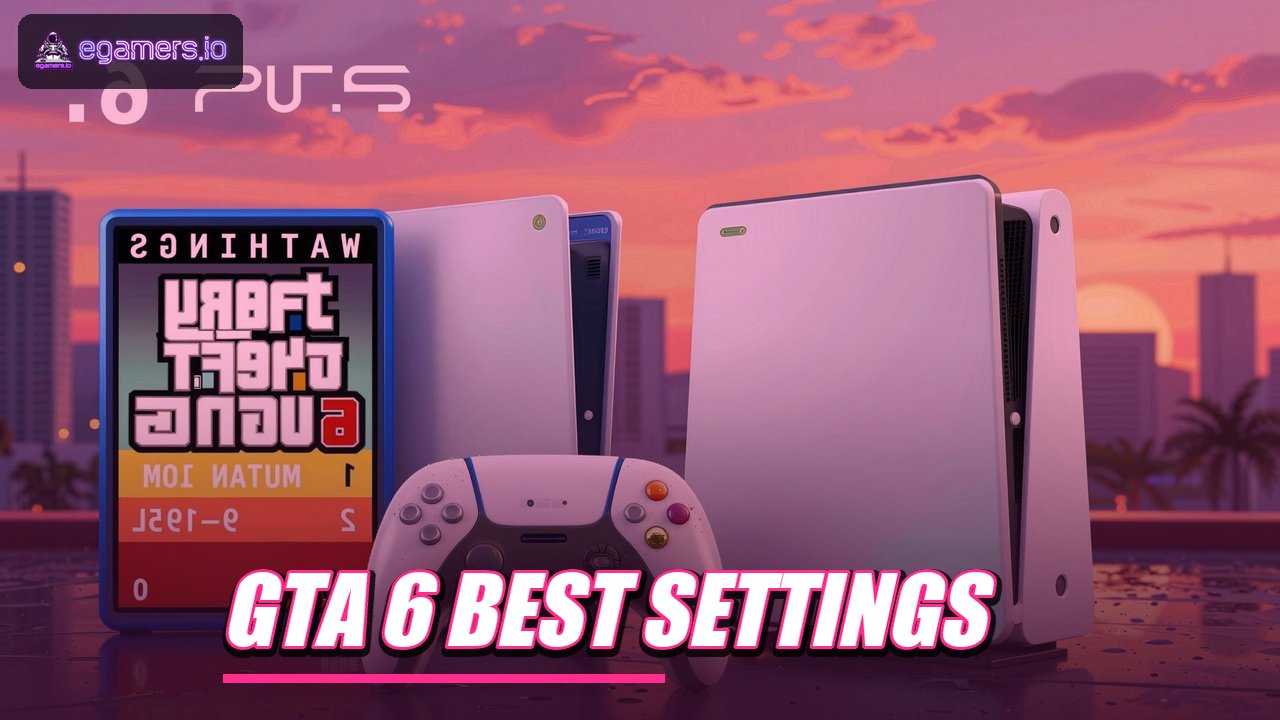
Quick answer: pause, open Settings and visit Control Scheme, Gameplay, Display and Controller. Here is the short list of what to change.
Where things live
Control Scheme is tab one. Tap R1 (PS5) or RB (Xbox) to hop to the Controller tab. Combat sits in Gameplay. Mess something up? Restore Default waits at the bottom.
Controls and aim picks
- Control Scheme: Default sprints on L3, Classic gives X or A like GTA V.
- Aim Response Curve: Precision.
- Targeting: Partial.
- Lock-On Target Switch, Shooting Assist, Drive-By Assist, Quick Draw: On.
- Aircraft Movement: Off.
- Vibration and Haptic Strength: On.
- Adaptive Speed Limiter: On.
Change one at a time so you know what helped. Prefer less help? Keep only what fixes a real problem.
Screen settings
Display has High Contrast Shaders and Motion Blur Strength. Test blur on and off. If your TV supports HDR, switch it on. Camera Shake, Camera Bob and Weapon Sway are the first to reduce when the motion hurts your eyes.
Text and markers
Try UI Text Size on Medium and markers on Large.
Vibration and aids
Keep Vibration and Haptic Strength on and Aircraft Movement off. Adaptive Speed Limiter goes on along with the combat and driving aids listed above. Settle for fewer aids if that suits your play.
Run the checklist
- Pause and open Settings.
- Pick Default or Classic.
- Set targeting and assists.
- Choose motion blur and HDR.
- Size your text and markers.
- Restore Default if you want a clean slate.
Chasing frames?Do a couple of changes, play for a while, then return for more.
FAQ
Where is the GTA 6 settings menu?
Pause the game and open Settings. R1 or RB takes you from Control Scheme to the Controller tab.
Can I undo my changes?
Yes, with Restore Default at the bottom of the screen.
Is motion blur worth turning off?
It is a matter of taste. The slider is on the Display tab.
Which text size should I start with?
Medium UI text with Large markers.