

Your PC already has a record of where the disk space went. The problem is that Windows hides the answer three menus deep, and several of the categories it does surface tell you nothing.
That’s what makes it maddening. The Storage panel happily reports that 84 GB is filed under “Other,” then drops you into File Explorer to fend for yourself. The approach below leans on the parts Windows handles well, then passes the job to a free utility that finishes it properly.
Sequence is everything here. Tackle the biggest space hogs first and you’ll free up meaningful room inside 10 minutes. Open folders at random instead and you’ll burn an hour recovering 200 MB.
Start where Windows counts the bytes for you
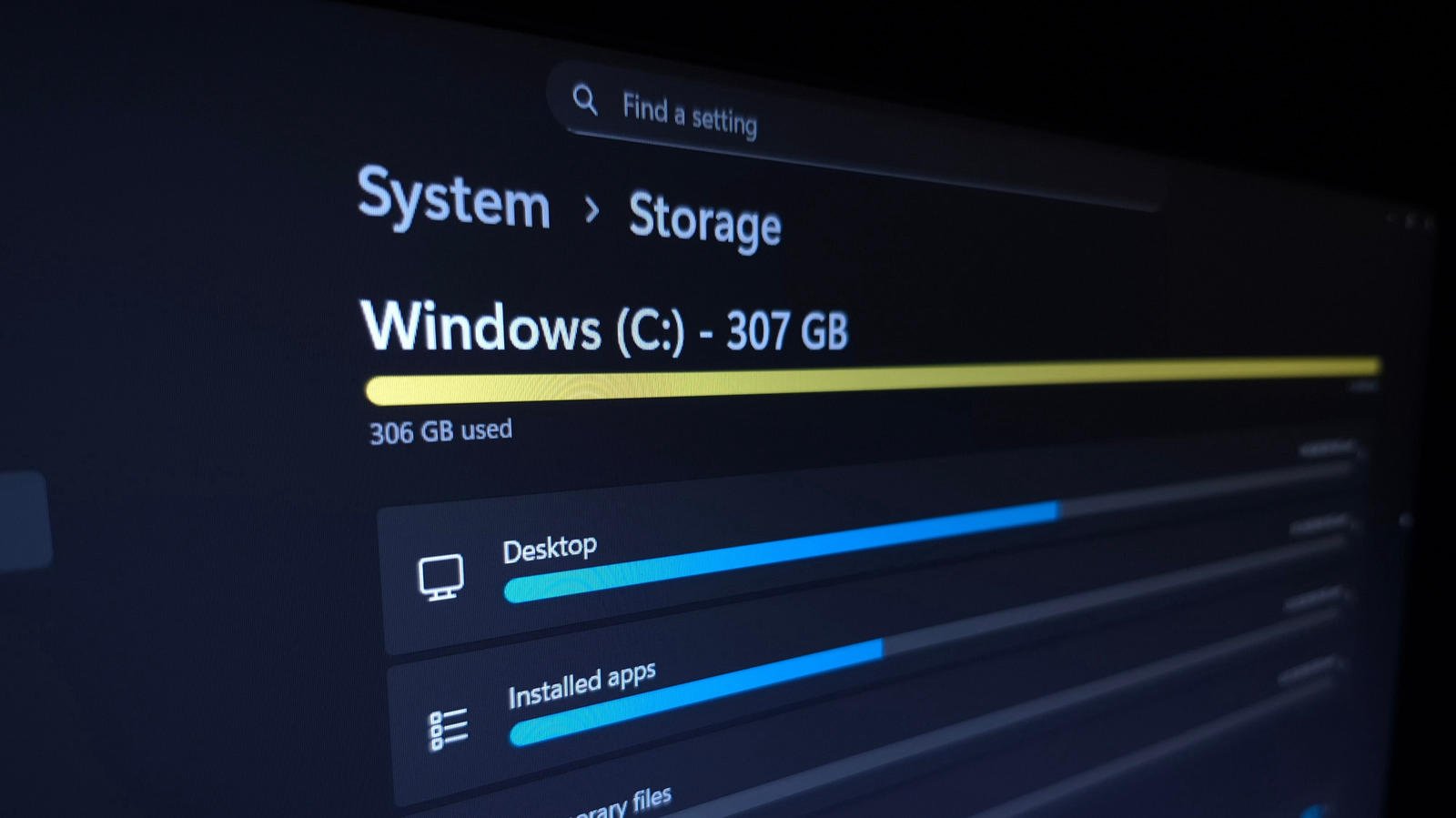
Hit Win + I for Settings, then go to System > Storage. You’ll see how much of your main disk is occupied along with a breakdown of what’s responsible. Clicking any category sends you straight to the place where you can act on it.
Installed apps usually sits near the top. Selecting it opens Settings > Apps > Installed apps, and your first move should be switching the Sort by box to Size (Large to Small). One change converts an unreadable list of names into a ranked target list.
Use the three-dot (…) menu beside anything you no longer touch and pick Uninstall. Where you have two or more drives, certain programs give you a Move option instead — Microsoft Store games among them. If there’s a chance you’ll return to it, moving is better than deleting.
The cleanup checkboxes that can bite you
Temporary Files presents checkboxes covering items such as Thumbnails. Those are painless wins. Choosing Cleanup System Files exposes further categories of junk.
Downloads and the Recycle Bin deserve more caution, though. Each can be sitting on a serious amount of space, and each can be sitting on something you’d rather not lose.
Open the Recycle Bin from the desktop and look through it before emptying, since clearing it destroys the contents for good. The same reasoning covers Downloads, a folder where installers, invoices and one-off files tend to pile up because nobody ever filed them anywhere.
Got more than one drive? Return to the Storage page, open Advanced storage settings and pick Storage used on other drives for the same breakdown across the rest.
System and reserved: last resort, not first
The System & reserved entry reveals how much room Windows’ own features occupy. Sometimes you’ll have to click Show more categories before it appears at all.
Save this one for the end. Switching these things off costs you genuine functionality — though yes, the space can be recovered if you’re truly out of options.
Never use hibernation? Then the sizeable hiberfil.sys file can go completely. Type “cmd” in the Start menu, right-click Command Prompt and select Run as administrator, then type powercfg /hibernate off and hit Enter. If you regret it, powercfg /hibernate on restores it.
The second lever is system restore. It rewinds the machine “back in time” to reverse a bad update or an unwanted change, so in most situations it’s worth holding on to. Choose Manage system restore, pick your System drive in the Control Panel window that appears, hit Configure, and pull the Max Usage slider down if you can live with fewer restore points. Delete removes every one of them — a meaningful amount of space, and a meaningful loss of protection.
![How to find what's eating your Windows storage [2026]](https://egamers.io/wp-content/uploads/2026/09/how-to-find-whats-eating-your-windows-storage-2026-2.jpg "Windows Storage Full? Here's How to Track Down What's Actually Using It [2026] 26")
Where the Settings panel gives up
As a starting point the Storage menu is fine; as a finishing point it isn’t. Categories such as Music and Videos simply open File Explorer locations, and Other — the bucket for everything Windows can’t classify — behaves the same way. Individual files remain a mystery.
Filling that gap is what third-party tools are for, mapping folder sizes into a hierarchy you can genuinely navigate. TreeSize Free is my pick.
Launch it as an admin using the button on the top toolbar, or it will quietly skip folders it lacks permission to read. Then hit Select Directory and aim it at the whole C: drive.
Biggest folders rise to the top, and the arrows let you expand and dig deeper. Expect Program Files and Program Files (x86) to be huge — installed apps live there. Never delete anything inside them directly; uninstall via Settings as covered above.
Find your account beneath Users to figure out which personal files deserve a different drive or the bin. AppData weighing in at several gigabytes means cache and downloaded content from browsers, streaming services and email clients, and wiping it is generally safe. Right-click any folder and pick Open to jump straight to it in File Explorer.
dupeGuru deserves a spot in the toolkit as well. It tracks down duplicate files spread across the system, the one category of waste TreeSize won’t surface.
Now go after what you found
Your next steps hinge entirely on what the scan revealed. Steam titles untouched for a year? Fire up the client and uninstall them. Big files you’re done with? Delete them, then empty the Recycle Bin after retrieving anything you still want.
Anything you want to keep but can’t store locally should leave the machine. Push long videos to YouTube and remove the local file. Sync photos to a service like Google Photos, then clear them off disk. OneDrive can be configured to hold only cloud copies of files you haven’t opened recently.
One warning that outweighs any space you reclaim: always keep more than one copy of anything important. A lone cloud copy does not count as a backup.
Buy a drive before you delete something you’ll miss
When you’re permanently running on fumes, a second drive is money well spent. An external SSD adds a terabyte or more, enough that you stop rationing your own files.
External HDDs run slower but work perfectly well for data you seldom open, and they’re cheaper — no small thing with storage prices as extreme as they are now. Even a handful of flash drives will relieve some of the pressure.

Set it and stop thinking about it
Head back to Settings > System > Storage and select Storage Sense. It removes junk on a schedule with no input from you.
Switch on Keep Windows running smoothly… so temp files get cleared routinely, then activate Automatic User content cleanup. You can restrict it to moments when storage runs low, or set fixed intervals.
Configure the Recycle Bin and Downloads options here with care, because this is precisely where people lose files they intended to keep. The real solution is behavioural rather than technical: while organizing your PC, keep only short-term files in Downloads. Do that and the automatic cleanup never costs you a thing.