

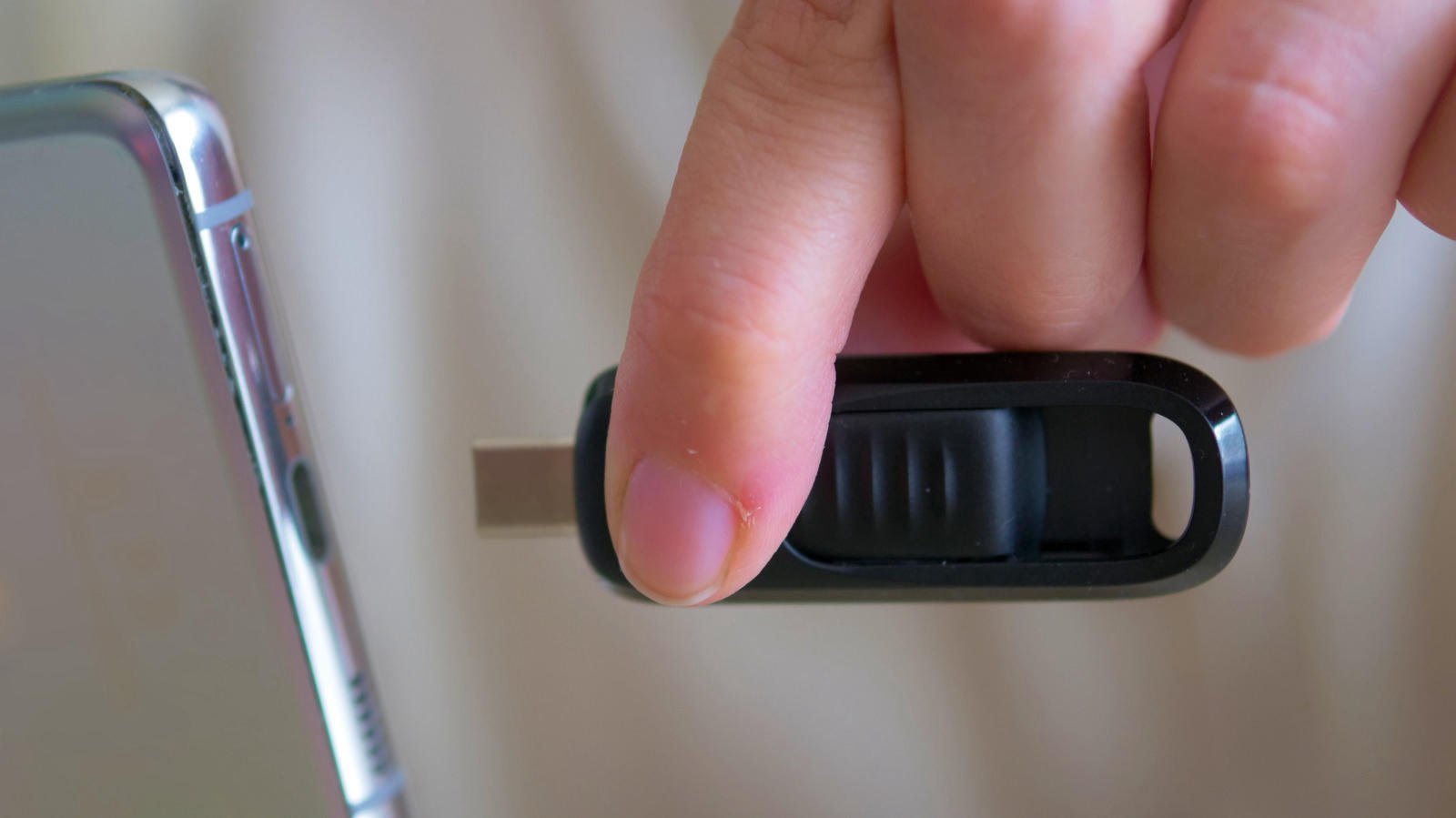
Look at the plug on the end of a flash drive and you learn almost nothing about its speed. That misunderstanding is widespread, and it is the one that empties wallets.
Put a USB 2.0 drive in a USB-C shell and it will still lose to a USB-A drive running USB 3.2. No exceptions. Plug shape describes the physical connection; it is not a performance grade.
The port matters as much as the drive
Push a quick USB-C drive into a USB-C port that only speaks USB 2.0 and USB 2.0 speeds are what you get. Whichever link in the chain is slowest sets the pace, and your receipt has no say in it.
The reverse holds as well. Connecting a sluggish USB 2.0 USB-A drive to a USB 3.2 Gen 1 port does nothing to speed it up.
The fix is simple: read the quoted read and write speeds on the packaging before paying. The connector will not tell you.
Where USB-C genuinely wins
Its advantage is convenience, above all. That compact reversible port now appears on the majority of current laptops and tablets and — the relevant one here — smartphones. When you need to shift a mountain of photos, video or documents off a handset, little else comes close.
Higher peak speeds are within USB-C’s reach compared with USB-A. But both the drive and the device have to support the faster standard for that ceiling to count for anything, and in the case of flash drives those theoretical maximums are not realistically achievable in the first place.
Consider a USB 3.0 drive. Between the USB-A version and the USB-C version, the physical connection is the sole genuine difference. Nothing more.
USB-A isn’t dead, and the spec sheet says so
Speeds of USB 3.2 Gen 1 and Gen 2 — as high as 10 Gbps — are well within USB-A’s remit. Both connectors were catered for by design in the underlying USB Gen 2 protocol, and USB-A only bows out once you climb past 10 Gbps.
That familiar rectangular Type-A socket remains ubiquitous: desktop PCs, laptops, TVs, routers, cars, game consoles. Bigger devices have gradually made room for USB-C, yet you will typically count fewer USB-C ports on a budget laptop than on a flagship.
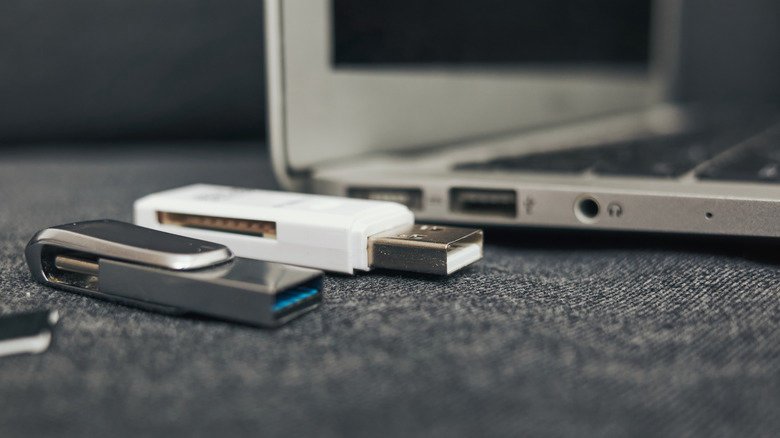
There is also the fact that no adapter hunt is required with a USB-A drive, which makes it the path of least resistance for moving a file. Bootable OS installation media, firmware updates, and dragging photos and video off kit with few or no USB-C ports all point the same way. The plain ones cost little and are trivial to replace.
The dual-ended drives, and the catch
For sheer flexibility in a pocket, nothing beats a dual-ended USB-C/USB-A flash drive. Both ports handled, zero adapters.
Fastest by default, though, it is not. Inside the drive, the two ends generally feed the same controller over the same USB protocol, so consult the manufacturer’s speed specs — otherwise you have simply bought something terribly slow in two shapes rather than one.
What to actually buy
For a laptop or desktop fresh out of the box, USB-C is nearly always the smarter choice, and doubly so if files are forever moving between your iPhone or Android device and your computer. Convenience is the case here, not raw speed.
Choose USB-A when compatibility comes first or older machines are part of your day. Hang on to one for boot media, ageing PCs and shared office equipment. If buying extra drives appeals less than carrying an adapter, adapters will close the gap — at the price of another item in your bag.
Anyone whose livelihood involves shifting enormous files — video editors and 3D artists among them — will end up on USB-C. Bear in mind, though, that once you reach 20 Gbps and beyond, the products worth your money are portable SSDs rather than thumb drives.