

Say your graphics card is putting out 100 FPS while your monitor refreshes at 60 Hz. Those figures don’t match, and the mismatch can cause screen tearing, where a horizontal line splits the image and the top half doesn’t line up with the bottom.
VSync is the long-standing fix for that problem. It does the job, but you pay for it in other ways. My advice: if you aren’t seeing any tearing, keep it switched off.
Two numbers that should match
First, the basics. Frame rate is the number of frames your GPU renders every second. Refresh rate is the number of times per second your monitor can draw a new image.
Ideally the two work together, so the game feels responsive, runs efficiently and keeps up a steady illusion of motion. In practice, they often fall out of step.
When that happens, the display can show parts of two different frames at the same moment. That’s screen tearing, and VSync, short for vertical synchronization, was built to remove it.
How VSync makes your GPU wait
The idea behind it is simple. With VSync on, the GPU waits for the monitor to finish its refresh cycle before it sends the next frame.
That means a 60Hz display will usually get a game running at about 60 frames per second, and a 144Hz display will get 144 FPS. Your card might be able to render more than that, but VSync holds it back until the monitor is ready for another frame.
There’s a bonus, too. Since the GPU isn’t working as hard, you may see lower power draw and less heat.
When it works well, VSync delivers a clean, even stream of frames. Characters move smoothly and the game world holds together. Like almost every PC graphics setting, though, it comes with trade-offs, and finding the right balance will probably take some trial and error.
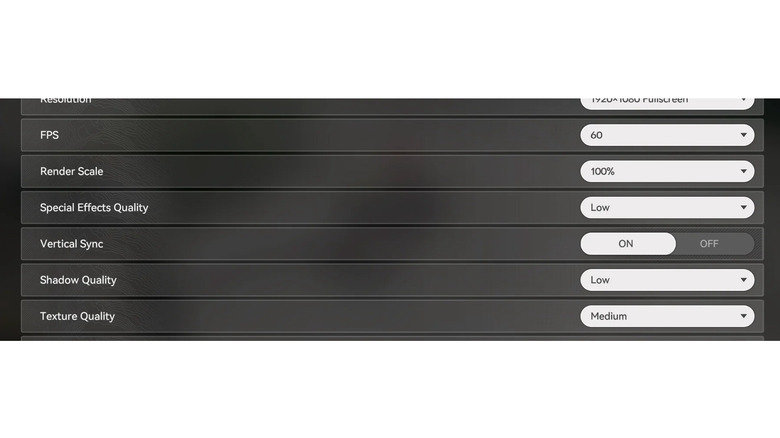
When your frame rate drops, VSync can make it worse
The first problem appears when your GPU can’t keep up with your monitor’s refresh rate. A game that ought to feel like 60 FPS can suddenly feel more like 30 FPS. How bad it gets depends on your setup.
In the worst case, you get stuttering. That’s the irony: the stutter can be bad enough that the tearing you set out to fix starts to look like a minor issue.
The second problem is input lag. VSync puts frames on a strict delivery schedule, which can add a small delay between your input and what shows up on screen.
You might never notice it in a slow-paced adventure game. In a competitive shooter, though, that delay can make everything feel heavy and sluggish, and that’s where VSync starts to hurt more than it helps.
FreeSync and G-Sync flip the approach
Even if you do see tearing, VSync may not be the best answer. AMD and Nvidia each offer variable refresh rate technology, and that’s often a better place to start. AMD calls its version FreeSync. Nvidia’s is G-Sync.
Both come at the problem from the opposite direction. VSync locks your graphics card to a fixed refresh schedule. FreeSync and G-Sync instead let the monitor adjust its refresh rate on the fly to match the frames coming from the GPU. With the right setup, that means less tearing without the stutter or input lag.
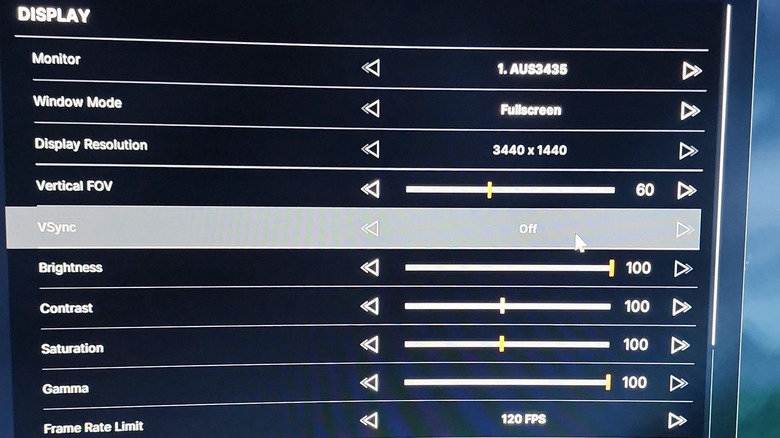
If your monitor supports one of them, switch it on in your graphics card’s control panel. The setup steps depend on which one you have.
For G-Sync, a good rule of thumb is to also turn on VSync (again through the NVIDIA app) and cap your frame rate about 3 FPS below your monitor’s maximum refresh rate. For FreeSync, keep standard VSync off. If tearing still shows up after that, you can try enabling VSync as well.
The hardware catch
The main drawback to both technologies is that your monitor has to support them from the start. This isn’t something you can add later.
G-Sync also needs a compatible Nvidia GPU. FreeSync is more flexible: AMD makes it, but it also works with Nvidia GPUs, which gives you more options.
When VSync is still the right call
If your hardware or a specific game doesn’t support either variable refresh rate technology, VSync is what you fall back on. It works best when your PC can hold a steady frame rate at or above your monitor’s refresh rate.
If you’re going with standard VSync alone, try turning it on in the game first. If the game doesn’t have the option, or its version doesn’t work well, you can force VSync from your graphics card’s control panel.
Choose one place to turn it on. There’s usually no reason to enable it in both, so if it’s already on in the game, leave the control panel setting alone.